How to Invite People to Farmative
Updated
Admins invite their team from Users in Farmative. Type an email address, choose a role, and press Send Invite. The person gets an email that names you and your organization, and signs in with that address. There's no password to create.
Who can invite people
Only an Admin of your organization can invite people. Other roles see Users greyed out. If you need someone added, ask your Admin or your Fork Farms team.
Invite someone
- Sign in to farmative.forkfarms.com.
- Press Users at the top of the page. You can also open your picture or initials, then Settings, then Users. On a phone, Users is in the menu.
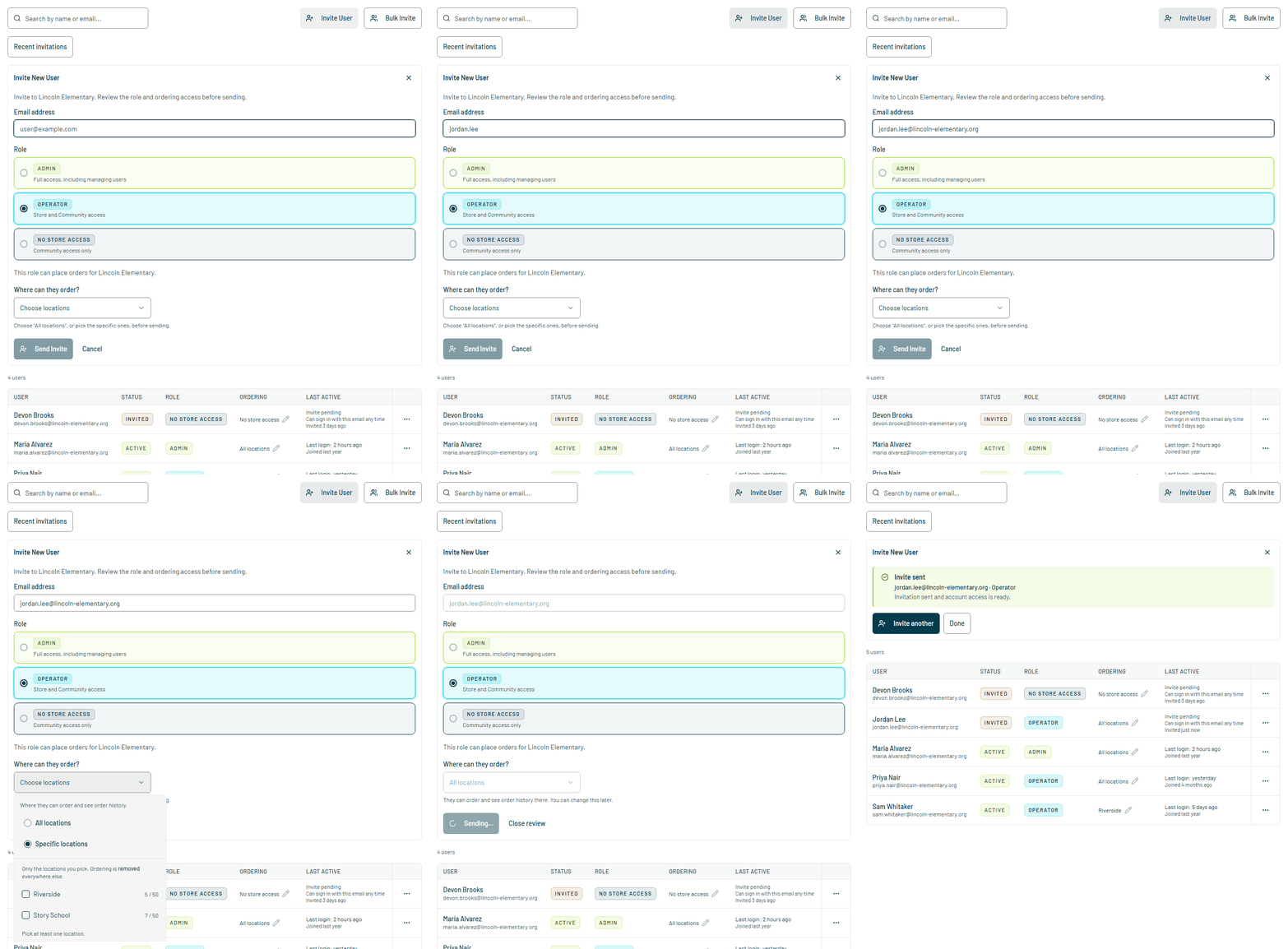
- Press Invite User.
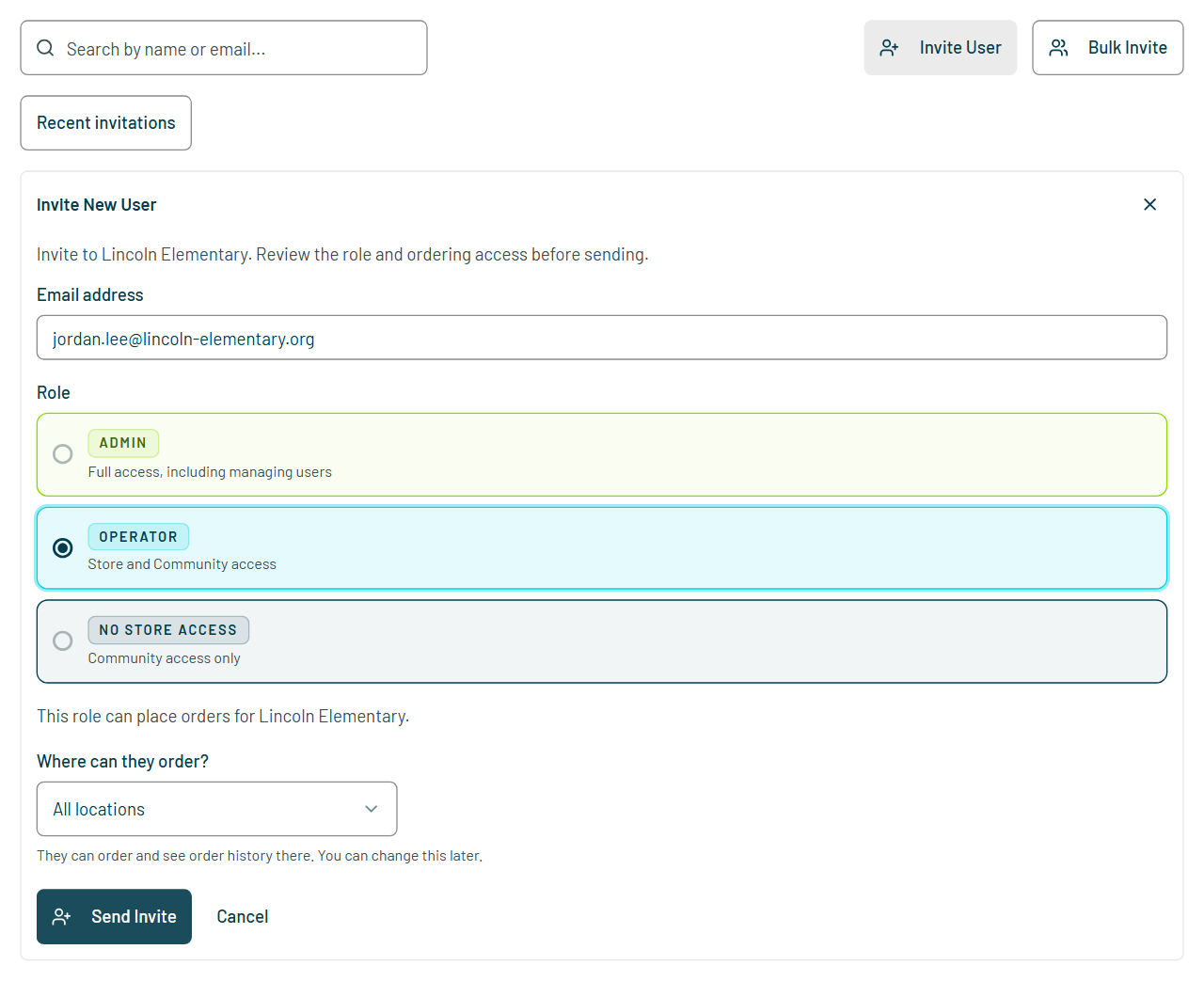
- Type the person's Email address. Use the address they will sign in with, usually their work or school email.
- Choose a Role. The form tells you whether that role can place orders for your organization.
- If you chose Operator and your organization has more than one location, answer Where can they order?: all locations, or the ones you pick.
- Press Send Invite. You'll see Invite sent. Press Invite another to add the next person, or Done.
Choose the right role
| Role | What they can do |
|---|---|
| Admin | Full access, including managing users. Admins can order at every location. |
| Operator | Store and Community access. Operators order at the locations you choose. |
| No Store Access | Community access only. They can't place orders. |
Each location can have up to 50 people who can order. If a location is full, the form says so.
What the person receives
An email from Farmative (Fork Farms), sent from no-reply@farmative.forkfarms.com. Its subject names you and your organization, for example "Maria Alvarez invited you to Lincoln Elementary on Farmative". It shows what's waiting for them and has a Sign in to Farmative button.
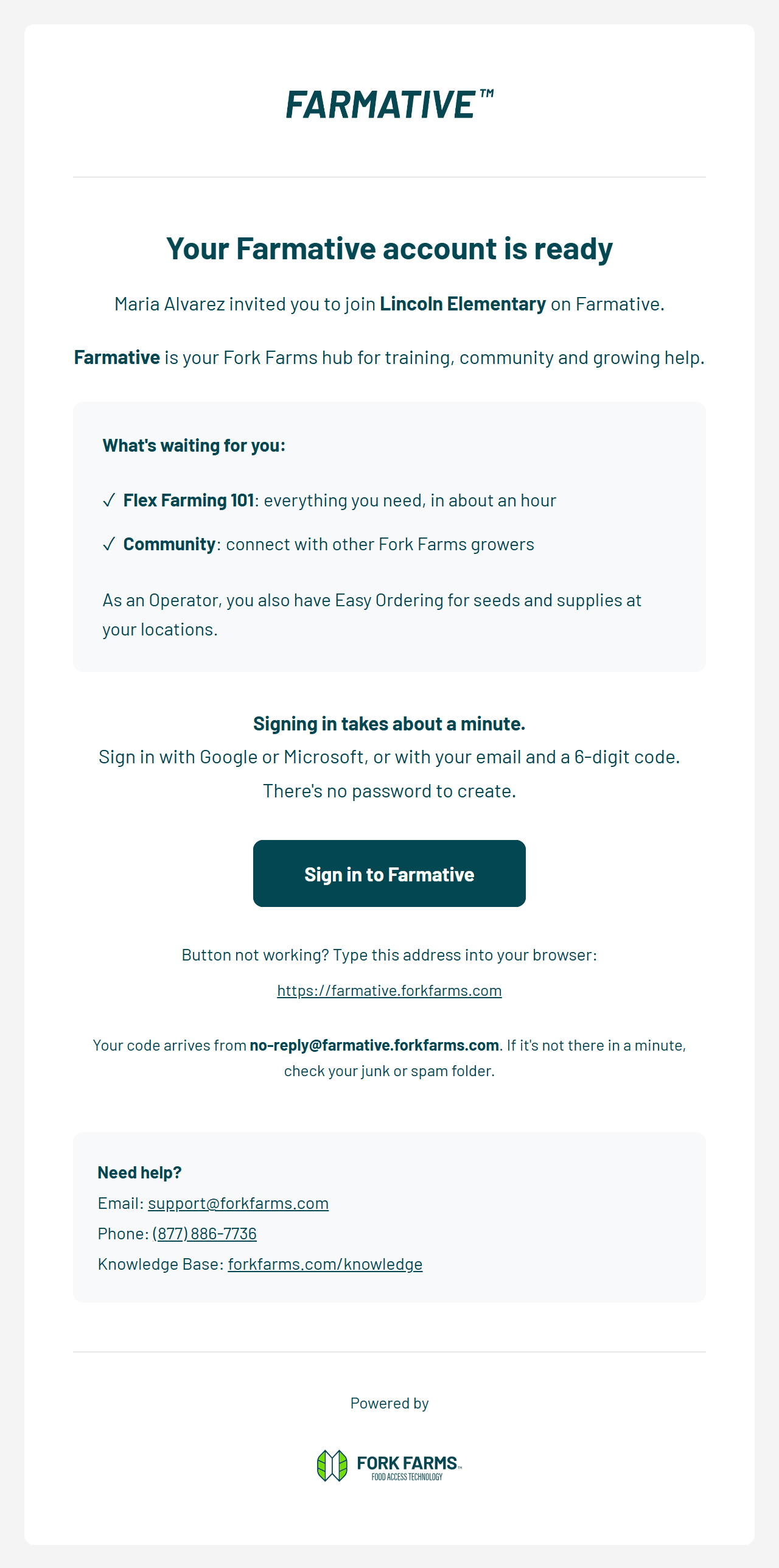
The invitation is not a one-time link. They can sign in at farmative.forkfarms.com any time with that email address, using Google, Microsoft, a 6-digit code or a passkey. See How to Log In to Farmative.
Manage your team
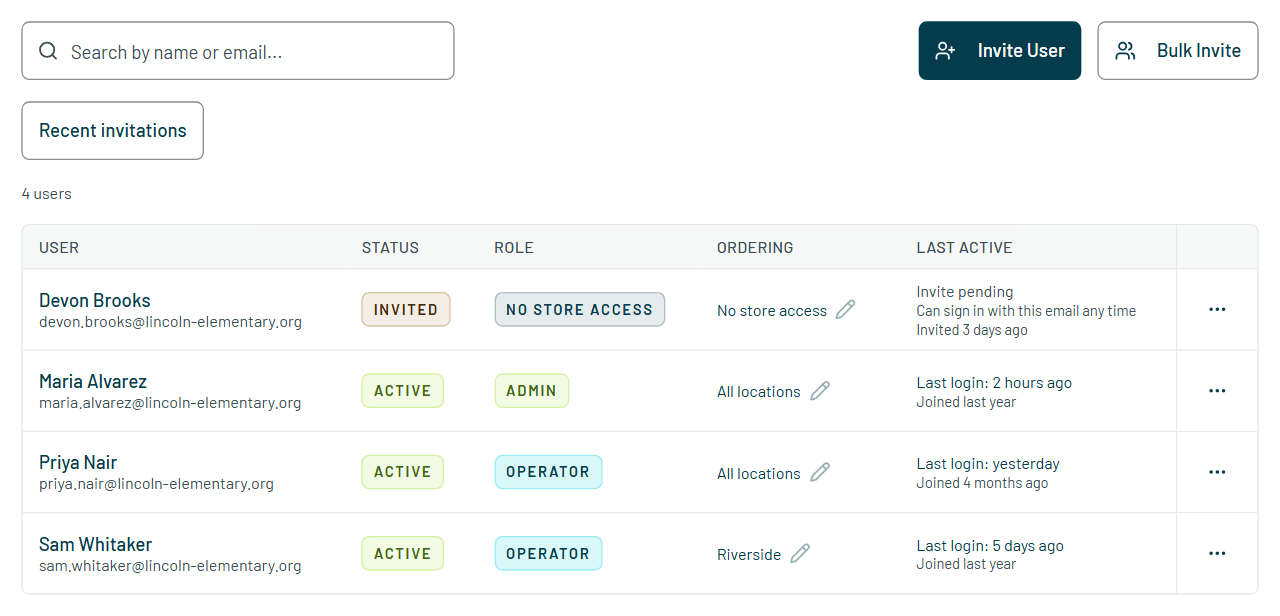
- Invite pending: the person hasn't signed in yet. They can sign in with that email any time.
- Edit access: change someone's role or where they can order. It's in each person's row.
- Remove User: takes the person out of your organization. They lose access straight away. To bring them back, invite them again.
- Bulk Invite: invite several people at once.
- Recent invitations: the invitations you've sent lately.
Already a user? If the person already has access to your organization, Farmative sends nothing and leaves their access as it is. Use Edit access to change it.
Need help?
Inside Farmative, press Help at the top of the page, then Contact support. You can also email support@forkfarms.com or call (877) 886-7736. New to Farmative? Start with Getting Started with Farmative.